
A child with their own account gets their own resume list, their own home screen, and only the things you want them to reach. It takes twenty minutes and it is one of the few settings in Jellyfin that everybody should change.
It is also worth being clear about what these controls are: good defaults for a child who is not trying to get around them, not a security boundary.
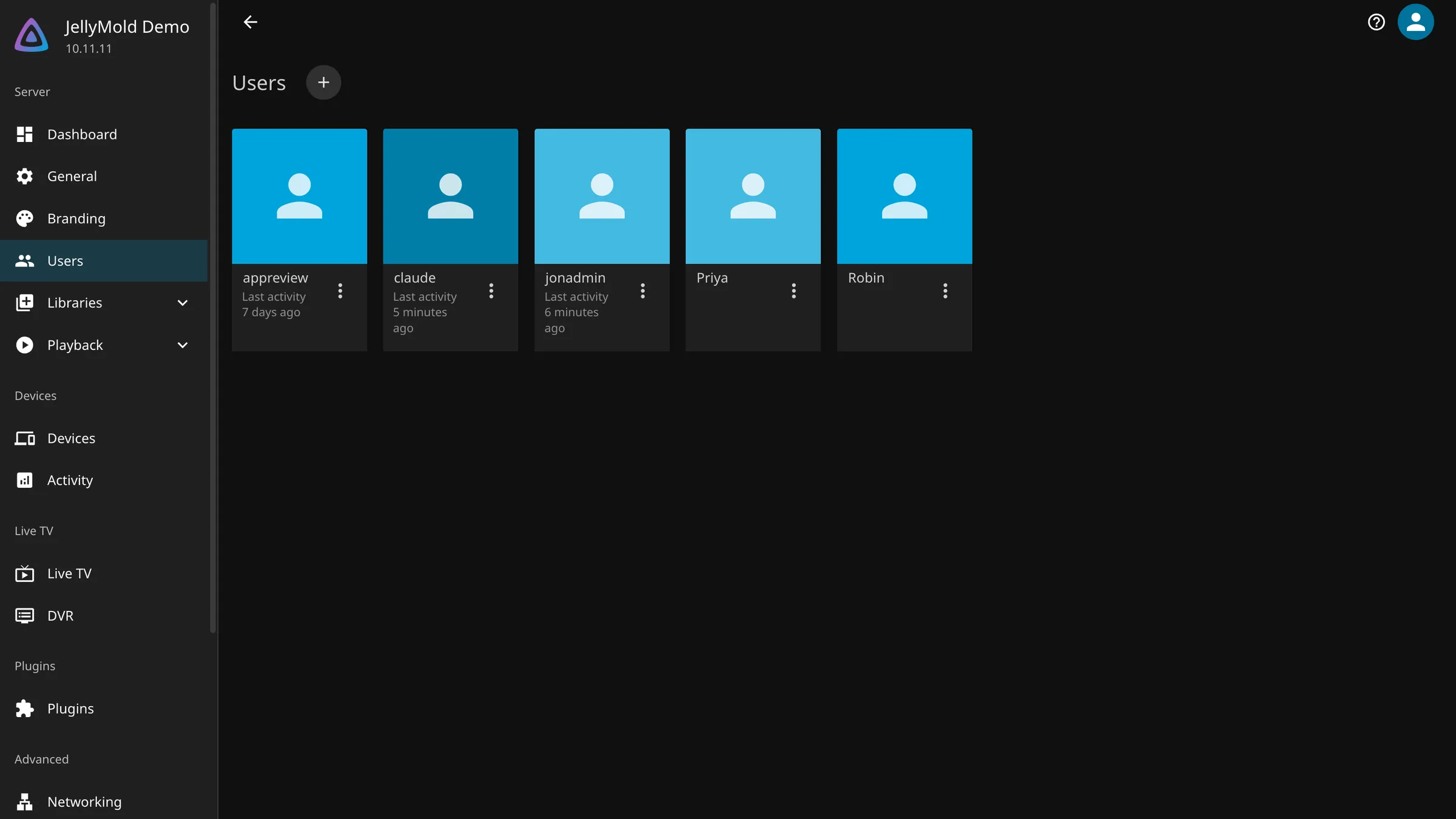
Create the account
- Dashboard, then Users, then add a user.
- Name it after the child.
- Give it a password, or leave it blank for a young child on a shared device. A blank password means anyone at the sign-in screen can pick that account, so only do it where that is what you want.
- Save, then open the account again for the settings that matter.
Note
Do not give a child the administrator account with a filter applied. An administrator can change their own restrictions, which makes the restrictions decorative.
Decide what they can reach
Two layers, and they work differently.
Library access
The blunt instrument, and the most reliable one. Under the account’s access settings, choose which libraries it can see at all. Everything else does not exist for that account.
A separate Kids library, pointed at its own folder, is the cleanest arrangement anybody has found. You decide what goes in the folder, and there is no rating system to trust.
Parental ratings
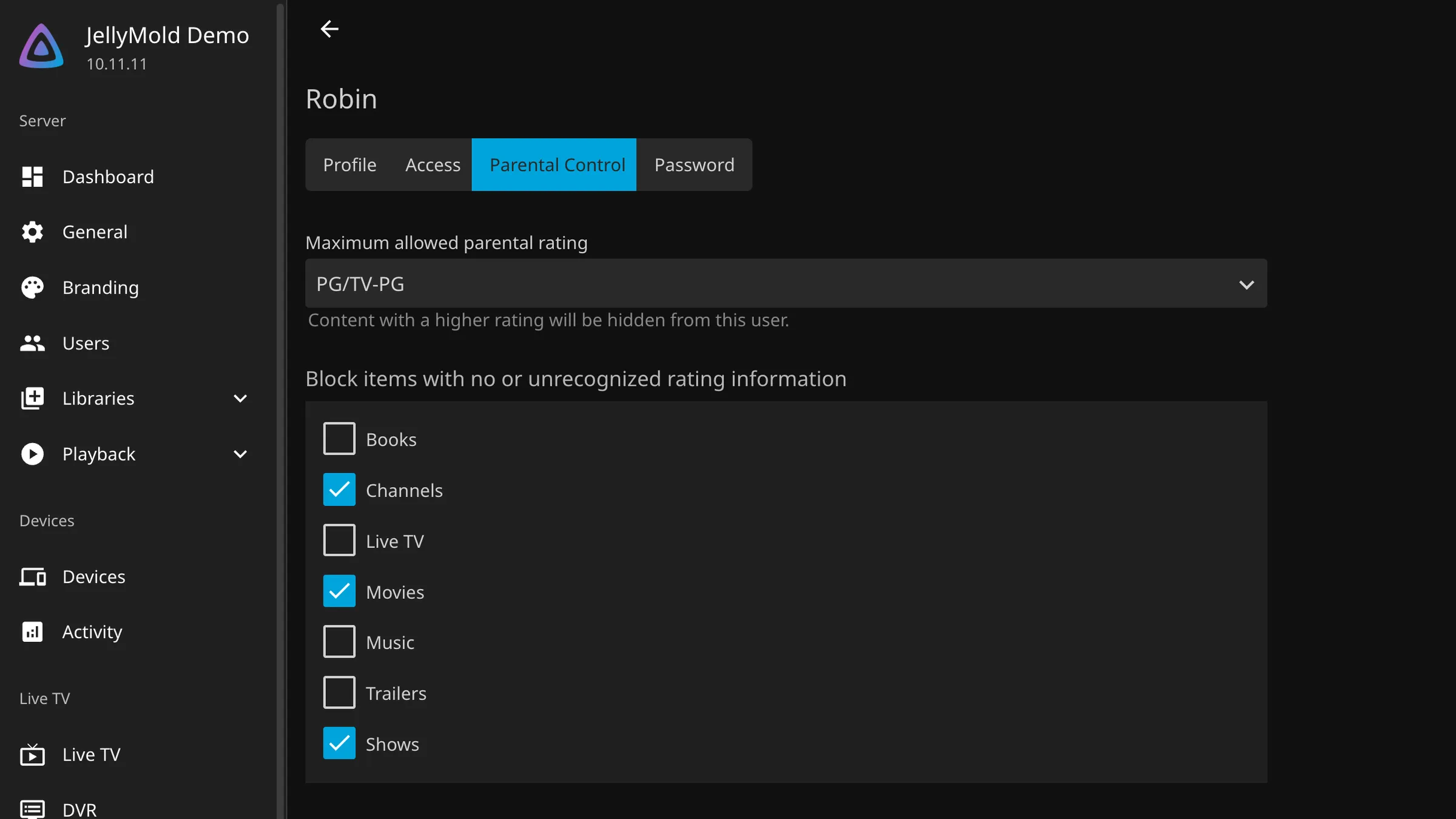
The finer instrument. Set a maximum rating and Jellyfin hides anything above it.
Two things to know.
The ratings come from metadata, so they are only as good as what was downloaded. A film whose rating did not come through is unrated, and there is a separate option for whether unrated items are blocked. Turn it on: a child’s account should not be able to see things nobody has classified.
The rating system depends on your metadata country. A server set to one country and a household in another gets ratings from a scale you are not familiar with, which is worth a look before you rely on the numbers.
Block by tag
Useful for things the rating system does not describe. Horror at a rating a child might otherwise reach, a series with episodes you would rather they did not see.
Tags are on the items themselves, so this needs the items tagged first, either by hand or from metadata. It is more work than the rating filter and it is more precise.
Access schedules
You can restrict an account to particular hours, which stops the television being on at six in the morning.
Be realistic about what this achieves. It stops a young child. An older one will notice that the restriction is on one account and there are other accounts, which brings us to the honest part.
What these controls actually are
They are good defaults rather than a security boundary, and the difference matters.
An account with a blank password is available to anyone at the sign-in screen, including the child, and including your own account if it also has a blank password. Give every adult account a real password, especially the administrator.
Library access is the only one of these that is properly enforced, in the sense that the content is not sent to that account at all. Rating filters hide things from the interface.
Anyone who can reach the files directly, on the file server or over a network share, has not been restricted by any of this.
Careful
The most common failure is an administrator account with no password on a shared device. Every control on this page is bypassed by one tap on a different account at the sign-in screen. Fix that before you tune the rating filters.
Check it by using it
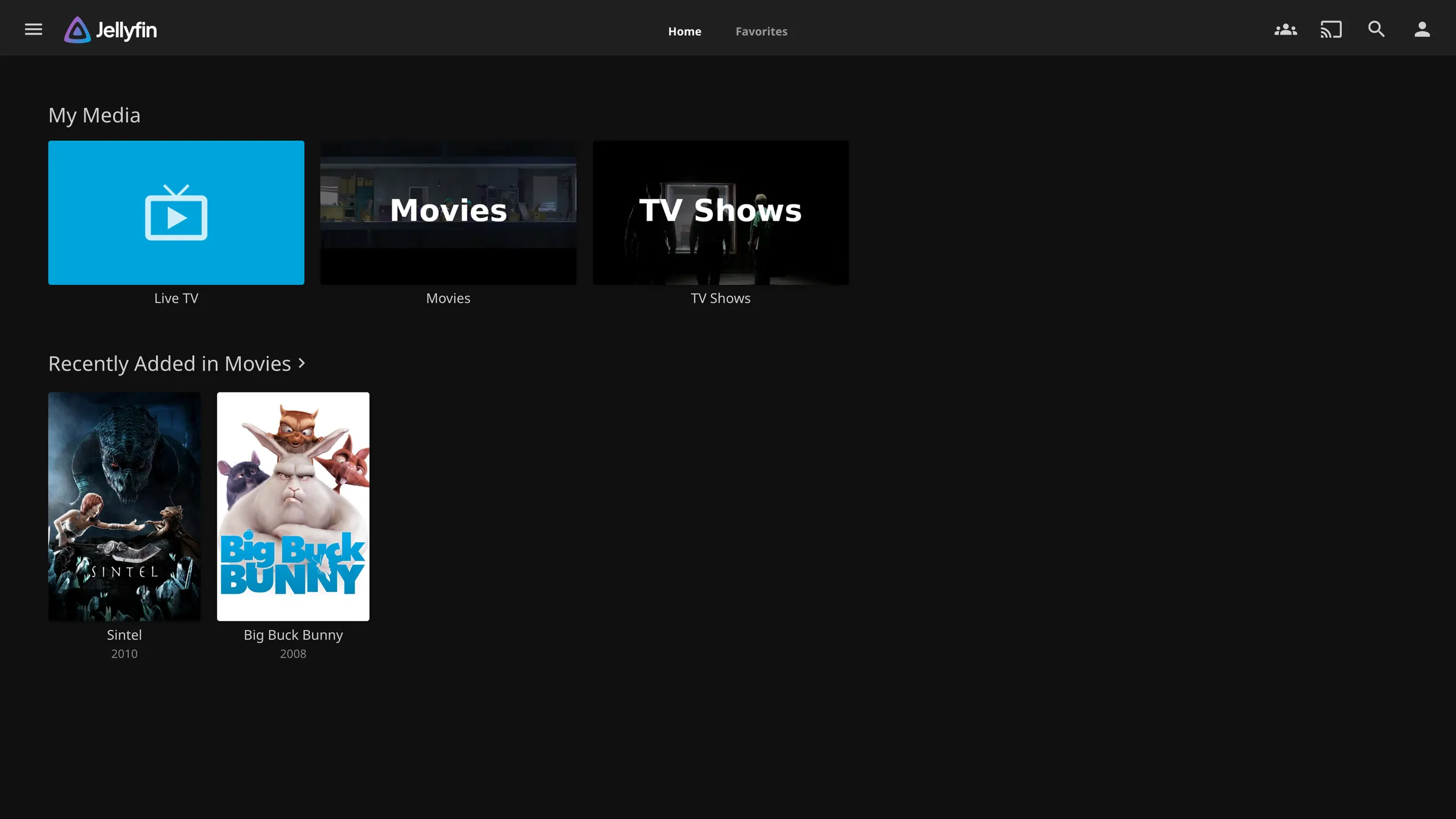
Sign in as the child and look. It is the only way to see what they see.
- Search for something that should be blocked and confirm it does not appear
- Check the home screen for anything unexpected
- Try a library they should not have, which should not be listed at all
Search is the one that catches people out. A filter applied to the browsing interface and not to search results is the usual gap, so test it there specifically.
A sensible arrangement
For a household, what tends to work:
- An administrator account with a real password, used only for administration
- One account per adult, each with a password
- One account per child, with library access limited to a Kids library, a maximum rating set, and unrated items blocked
- Nothing shared, so everyone’s resume list is their own
The resume list is the part people underestimate. Separate accounts are worth setting up for that alone, before any of the restrictions.