
Moving is easier than it looks, because the hard part, your media, does not move at all. Jellyfin reads the same library folders Plex reads. What actually has to move is your watch history, your users and your remote connection, and only one of those is genuinely difficult, and they are all optional.
This is the order that causes the least pain.
Two things to know before you start
Your media does not move
Both servers read the same folders and neither modifies them. There is nothing to copy, and you never have to have two copies of anything. Almost all the fear about migrating comes from not knowing this.
Remote access is yours to arrange now
As part of the Plex service remote access is provided, and it helped route around network awkwardness. Jellyfin has no equivalent and never will, because that relay is a company you have decided to remove from the picture. Setting this up can be done a few ways, the easiest being about ten minutes of work with Tailscale. And it’s worth stress testing it works, before you try accessing your server when on holiday, only to find it’s not working as planned.
We recommend not turning Plex off, yet
Run both while you settle into Jellyfin, so you have the safety net of a system you already know works and are comfortable using, pointed at the same folders, for at least a month. Especially if you have other users to consider - migrating yourself over is the easy part, convincing others in your life to change their habits can be harder. Fortunately both services can coexist happily, using different ports, pointed at the same content, and neither knows the other exists.
Run Plex and Jellyfin side by side while you decide. Everything below assumes you have done that and are now committing to the move.
What comes across, and what does not
| Your media files | Untouched. Both servers read the same folders. |
| Watch history and resume points | With a sync tool. Not by itself. See below. |
| Collections | No. Rebuild them, or use folder structure and tags. |
| Playlists | Sometimes, with a tool. Usually easier to rebuild. |
| Users | No. Create them again. It’s a five minute job. |
| Metadata you edited by hand | No. It lives in Plex’s database. |
| Posters you replaced yourself | No, unless you saved them next to the media. |
| Sharing with other people | No. Different model entirely. |
The pattern is that anything Plex kept in its own database stays in its own database. Anything that lives next to your media comes across for free. The pain of going through these steps is a one-time thing, once it’s done you can get back to watching your media, with more control and freedom.
Tip
If you have spent years correcting metadata inside Plex, export it to NFO files and local artwork before you stop using it. Metadata stored beside the media is readable by Jellyfin, Kodi and anything else, and it survives every future move as well as this one.
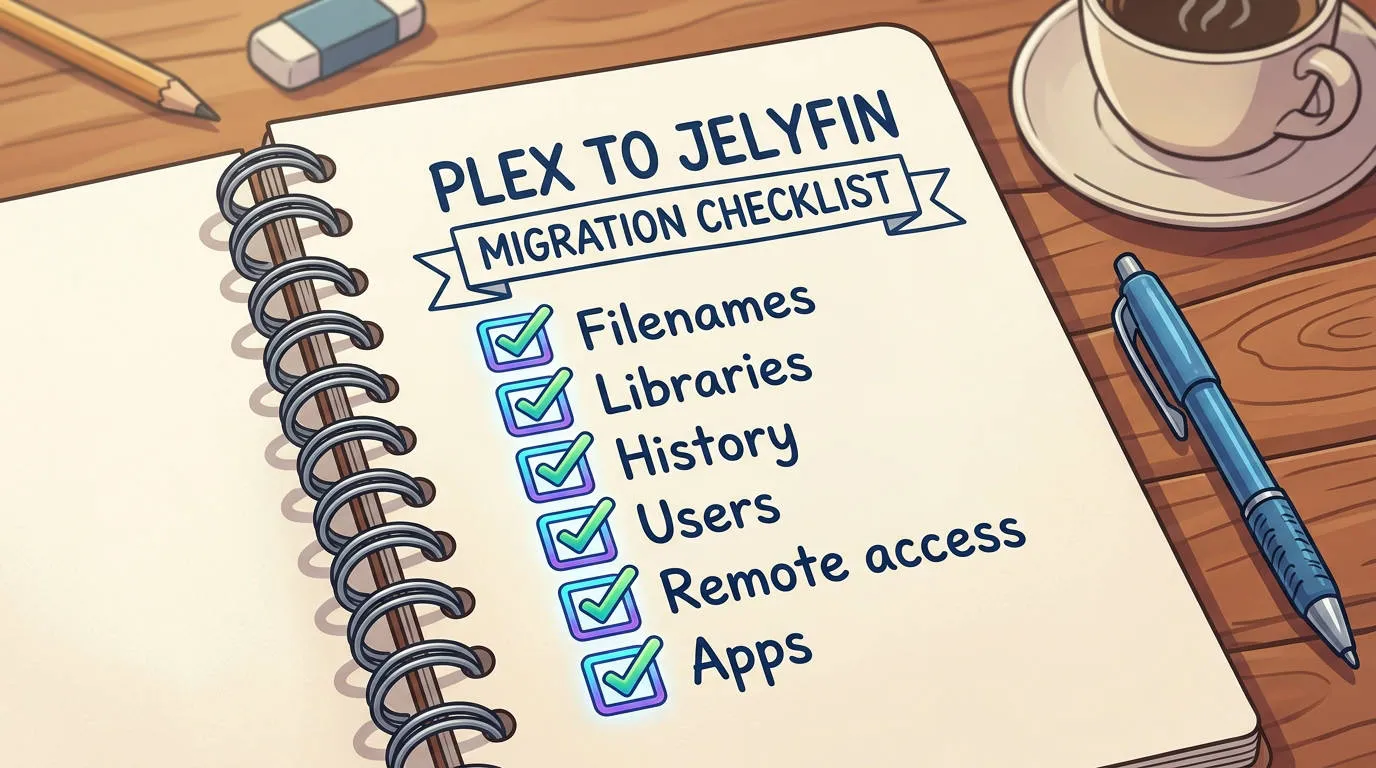
The order of work
1. Fix the filenames first
Jellyfin reads names slightly more strictly than Plex, and Plex has been quietly covering for names that are not quite right. You will find out which ones on the first scan.
Do the renaming before you connect the library and scan it, because renaming after a scan loses the watch history attached to the old name, and you may be about to go to some effort to import your Plex watch history into Jellyfin. How to name your media files for Jellyfin.
2. Build the libraries
One per content type (separate libraries to Movies & TV Shows), pointed at the same folders Plex uses. Our Set up your first movie library guide has the settings worth changing. Let the first scan finish completely before judging anything.
3. Bring the watch history across
This is the step that stalls migrations, and it deserves its own page: Bring your Plex watch history with you.
For some people it’s just not that important, for others it’s vital. Do it after the libraries have finished scanning, because the sync works by matching items and it cannot match what does not exist yet.
4. Create the users
One account per person. Take the opportunity to do it properly rather than copying whatever grew organically in Plex over the years: separate accounts mean separate resume lists, which is the difference between a home screen that is useful and one that is everybody’s half-watched episodes at once. You may not want to give everyone the ability to delete media also, some may be read-only accounts.
Children get their own accounts with restrictions: Set up a child’s account and limit what they can see.
5. Sort out remote access
Reach your server from outside, without opening a port explains the three options and which one you want. For a household watching their own library, it is a VPN, and Tailscale is ten minutes.
It is not recommended to forward a port. It is what the old forum posts say and it is how home servers get compromised. There are more secure ways that are not more complicated to set up.
6. Set up the apps
Everyone in the house needs a client on the device they actually use. This is the step where a migration succeeds or quietly fails: an app that is worse than the one they had is the only part of this your household will ever notice. Try the first party apps, they are simple, but for some people a basic and free forever app is just fine. If you want a good experience and more features, then 3rd parties are the place to look. Of course, we recommend JellyMold for iOS and tvOS, but there is a rich ecosystem out there and we recommend trialling a few different apps until you find the one that suits you best - most will have a generous free trial. If you choose the Annual plan, JellyMold gives you 3 months free to make up your mind.
7. Then turn Plex off
Not before. We recommend keeping its database for another month after you stop using it: it is small, and it is the only copy of anything you might discover you wanted. You can leave it there indefinitely, just stop Plex running if it’s no longer being used, as it will burn resources you are not utilising.
Things that will feel different
No account to sign in to
You sign in to your server, with a username and password you created. There is no jellyfin.com level account to create, or find out was part of some large data breach down the line.
The home screen shows your library
No recommendations from elsewhere, no free or junky content, no discovery layer. Some people find this a relief and some find it sparse. Jellyfin will display what you have, and nothing more.
Nothing has been arranged for you
Remote access, backups, sharing. All of it can be set up to work, none of it is automatic. Lucky for you, we have a comprehensive set of guide here to help.
Hardware transcoding is free
If you were paying Plex for it, you can now cancel that subscription and save yourself some money.
Note
On an iPhone or iPad, the thing worth getting right is how the app plays your files. An app that asks your server to re-encode everything is a worse picture, a hot server and a higher electricity bill. JellyMold asks for the file as it is and decodes it on the device, which on a remote connection also means playback starts straight away.
If it does not work out
Plex is still installed, its database is intact, and your media was never touched. Turn Jellyfin off and delete its config directory.
Knowing that you have a backup is what makes it possible to try this, without risk.